Want to practice this with a native Korean teacher?
100-min free trial — no card required.
Ever wanted to chat with a Korean friend, search for K-drama lyrics, or just get some real Hangul practice, but worried you needed a special keyboard? Let's clear that up right now: you don't! Everything you need to type in Korean is already built into your computer and phone, waiting for you to flip a switch.
Learning to type in Korean might seem challenging at first, but with the right approach, it becomes a fun and rewarding journey. This guide will walk you through the simple steps to set up your devices and start typing Hangul today. Think of it as unlocking a new superpower in your language learning toolkit, allowing you to connect more deeply with Korean culture online. We’re about to turn you from a passive learner into an active participant. Let's get started!
Getting Started Without Any Special Hardware
If you've ever wondered how to actually type Hangul for your homework, search for your favourite K-drama, or chat with Korean friends, this guide is your starting line. We're about to unlock a whole new way for you to engage with the Korean language online.
Thankfully, all modern operating systems—whether you’re on Windows, macOS, iOS, or Android—make it incredibly easy to add different language inputs. This means you can toggle between English and Korean with a quick keyboard shortcut or a simple tap on your screen. No need to hunt for extra hardware or install complicated software. It’s all right there.
The Power of Your Built-In Keyboard
Learning to type in Korean is a game-changer for really connecting with the language. It’s the difference between being a passive observer and an active participant.
Once you’re set up, you can:
- Search like a native: Find song lyrics, recipes, or news articles directly in Korean for more authentic results.
- Chat with friends: Message your language exchange partners or friends in Korea without relying on copy-paste.
- Cement your learning: Actively typing out vocabulary and sentences is one of the best ways to reinforce what you’ve learned.
- Dive into the culture: Fully participate in online fan cafes, forums, and social media conversations.
This kind of digital fluency is a huge deal. South Korea is one of the most wired countries on the planet. As of January 2024, it had roughly 50.4 million internet users, which is a staggering 97.4% of the population. This hyper-connectivity is precisely why Hangul input is so seamlessly integrated across all digital platforms, making it easy for learners like us to get started. You can dig deeper into South Korea's digital statistics on DataReportal if you're curious.
The real magic of using your standard English keyboard is that it forces you to memorize the Hangul letter layout. It’ll feel awkward and slow at first, I won't lie. But pushing through that initial phase builds crucial muscle memory that pays off big time, making you a much faster and more confident typist down the road.
Now, let’s get practical. In the next few sections, I’ll walk you through the exact steps for enabling the Korean keyboard on your device. By the time we're done, you'll be ready to type your first Korean words and take a massive step forward in your language journey.
Getting Your Computer Ready for Korean Typing
Alright, let's get your desktop or laptop set up to type in Korean. This might sound a bit technical, but trust me, it’s a quick and simple process. Think of it as teaching your computer a new language.
The best part? Both Windows and macOS already have full Korean language support built-in. You don't need to download or buy a thing. We just need to switch it on.
Setting Up the Korean Keyboard on Windows
If you’re on a Windows machine, adding the Korean keyboard is just a matter of a few clicks in your system settings. Once you've done it, hopping between English and Korean is seamless.
Here’s the path to get it done:
- First, open up your Settings by clicking the Start menu and selecting the gear icon.
- Head over to 'Time & Language' and then click on the 'Language & region' tab.
- Look for the 'Add a language' button and give it a click. A new window will pop up.
- In the search bar, type "Korean," select it from the list, and hit 'Next'. You can skip the optional features like 'Speech' and 'Handwriting' if you just want to type. Click 'Install'.
And that's it! You'll see 'Korean' pop up in your list of preferred languages.
To switch between English and Korean, just use the keyboard shortcut: Windows key + Spacebar. You’ll notice a small language indicator (like 'ENG' or '한') appear in your taskbar, showing you which language is active. The default keyboard, Microsoft IME, is perfect for getting started.
Setting Up the Korean Keyboard on macOS
For all the Mac users out there, the process is just as painless. It all happens in your System Settings, where you'll add Korean as a new input source.
Here's how to get it sorted:
- Start by clicking the Apple logo in the top-left corner and opening 'System Settings'.
- In the sidebar, scroll down and select 'Keyboard'.
- Find the 'Text Input' section and click the 'Edit...' button next to 'Input Sources'.
- A new window will appear. Click the '+' button at the bottom.
- Find 'Korean' in the language list. You’ll see a few layout options on the right—make sure you choose '2-Set Korean'. This is the standard layout used all across South Korea and the one we’ll be focusing on. Click 'Add'.
You're good to go! A new language icon will now be visible in your menu bar. You can click on it to switch, or even better, use the handy shortcut: Control + Spacebar.
A Quick Word of Advice: As a learner, the '2-Set Korean' layout is the only one you really need to know. It’s laid out very intuitively, with consonants on the left side of the keyboard and vowels on the right, which genuinely helps you build a natural typing rhythm. Don’t get distracted by other layouts like '3-Set'; they are rarely used.
With your computer now officially bilingual, you're all set to open up a document and type out your first Hangul characters.
Getting Your Phone Set Up for Korean
Let's be real—most of our typing happens on our phones. This makes your smartphone one of the best tools for getting daily Korean practice. Setting up the Korean keyboard is a one-time thing that takes just a minute, but it pays off every single time you text a friend or search for a K-drama.
Whether you're on an iPhone or an Android device, adding the Korean keyboard is a simple tweak in your settings. It's the key to unlocking on-the-go Hangul practice, turning dead time into productive learning moments.
Adding the Korean Keyboard on an iPhone
If you're an iPhone user, you're in luck. Apple makes it incredibly easy to add new languages, and you can have the Korean keyboard ready in under a minute.
You just need to dive into your settings. Here's the path:
- Go to Settings and tap on General.
- From there, select Keyboard, and then tap Keyboards at the very top of the next screen.
- Hit Add New Keyboard... and scroll until you find Korean.
- You'll be given two options: 'Standard' and '10-Key'. For now, I'd recommend picking Standard. It gives you the familiar QWERTY layout that matches what you see on a computer.
That's it! Now, whenever your keyboard is open, just tap the little globe icon in the bottom-left corner to cycle between English and Korean. It’s a seamless way to weave your language practice into your everyday life.
Activating the Korean Keyboard on Android
For the Android crowd, the exact steps might look a little different depending on who made your phone (like Samsung or Google) and what keyboard app you prefer. But the core idea is the same, especially for the two most common keyboards: Gboard and the default Samsung Keyboard.
Generally, you'll want to look for a path like Settings > General Management > Keyboard list and default. In that menu, you can manage your input methods and add Korean. If you're using Gboard, for instance, you'd tap 'Languages,' then 'Add Keyboard,' and find Korean (한국어) in the list.
On mobile, you'll run into a key decision: layout. The 'QWERTY' (or '2-Set') layout is exactly what you'd expect, mirroring a physical keyboard. But many native Koreans swear by the '10-Key' (or 'Chunjiin') layout, which is brilliantly designed for fast typing on a small screen using a system of dots and lines to build vowels.
Choosing Your Mobile Keyboard Layout
So, which layout should you pick? It really comes down to what feels right for you.
QWERTY / 2-Set (두벌식): This is the perfect starting point for most learners. It keeps things consistent with the computer keyboard you're likely already practicing on. Each key has one specific consonant or vowel, so there's less of a learning curve.
10-Key / Chunjiin (천지인): This one is a powerhouse for speed once you master it. It groups characters based on their components, letting you type much faster with fewer taps. The name itself comes from Korean philosophy, representing the three elements of the universe: the sky (하늘), the earth (땅), and humanity (사람).
My personal recommendation? Start with the QWERTY layout. Get comfortable with it and build a solid foundation. Once you feel confident and want to boost your mobile typing speed, give the 10-Key a shot. You might just be surprised by how intuitive and efficient it feels.
Making Sense of the Hangul Keyboard Layout
Alright, now that your devices are ready to go, let's get acquainted with the keyboard itself. At first glance, it might seem a little intimidating, but trust me, there's a brilliant logic to it that you'll come to appreciate.
We're going to focus on the '2-Set' (Dubeolsik / 두벌식) layout. This is the universal standard across South Korea, and for a very good reason—it’s incredibly efficient.
The design is pure genius. All the consonants are neatly clustered on the left side of the keyboard, while the vowels are all on the right. This clever division creates a natural, rhythmic typing flow. Your fingers will literally dance between the two halves as you form syllables, which makes learning to type in Korean feel surprisingly intuitive once you get going.
The Left-Hand, Right-Hand Rule
Here’s a simple way to think about it: your left hand takes care of the consonants, and your right hand handles the vowels.
When you type a syllable, your left hand starts things off with the initial consonant. Your right hand then adds the vowel. If the syllable needs a final consonant (known as batchim), your left hand jumps back in to finish the block. It’s a physical process that perfectly mirrors how Hangul syllables are constructed.
This keyboard layout is a direct reflection of Hangul's own scientific design. King Sejong's goal back in 1443 was to create a writing system that was easy for everyone to learn, and that philosophy carries right through to the digital age. The way the keyboard combines consonants and vowels into neat syllabic blocks just makes sense. If you're curious, you can even read about Hangul's incredible impact on literacy rates in OECD reports.
Typing Double Consonants and Complex Vowels
So, what about those strong-sounding double consonants like ㄲ (kk), ㄸ (tt), and ㅃ (pp)? The solution is beautifully simple and one you already know from typing in English.
You just hold down the Shift key.
- To type ㄲ, you press Shift + ㄱ.
- To get ㄸ, you press Shift + ㄷ.
- For ㅉ, it's just Shift + ㅈ.
This one simple trick covers all five of the tense (or double) consonants, so you don't have to hunt for extra keys. It’s one of those small, thoughtful details that makes the 2-Set layout so effective. The same principle applies to some of the more complex vowels, too.
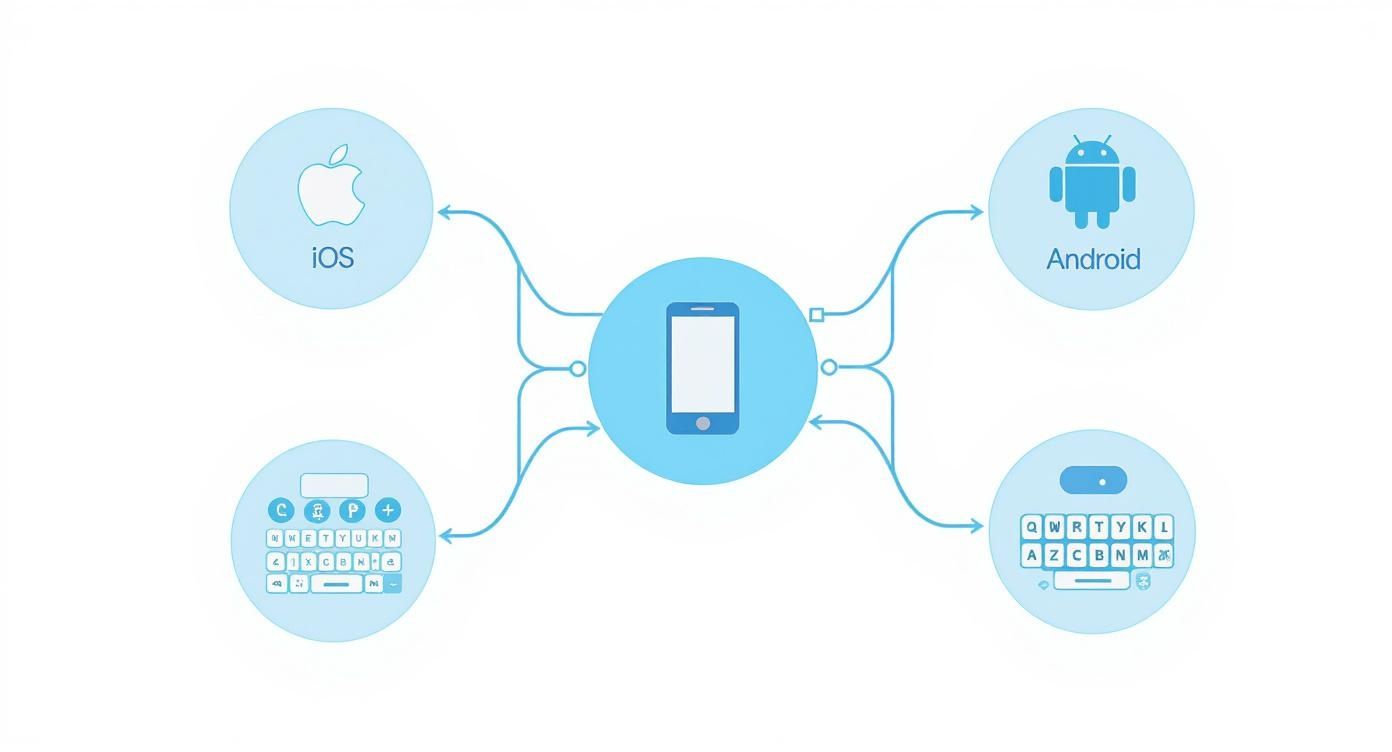
As you can see, modern smartphones give you options. Both iOS and Android offer the standard QWERTY-style keyboard and often include a mobile-friendly 10-key layout, which can be great for one-handed typing.
Korean Consonants and Vowels on a QWERTY Keyboard
To help you get started, here’s a quick reference guide showing where each Hangul letter lives on a standard English QWERTY keyboard. Think of this as your cheat sheet for the first few days.
| Hangul Character | Corresponding QWERTY Key | Shift + Key (if applicable) |
|---|---|---|
| Consonants | ||
| ㄱ (g/k) | r | ㄲ (kk) |
| ㄴ (n) | s | |
| ㄷ (d/t) | e | ㄸ (tt) |
| ㄹ (r/l) | f | |
| ㅁ (m) | a | |
| ㅂ (b/p) | q | ㅃ (pp) |
| ㅅ (s) | t | ㅆ (ss) |
| ㅇ (ng/silent) | d | |
| ㅈ (j) | w | ㅉ (jj) |
| ㅊ (ch) | c | |
| ㅋ (k) | z | |
| ㅌ (t) | x | |
| ㅍ (p) | v | |
| ㅎ (h) | g | |
| Vowels | ||
| ㅏ (a) | k | |
| ㅑ (ya) | i | |
| ㅓ (eo) | j | |
| ㅕ (yeo) | u | |
| ㅗ (o) | h | |
| ㅛ (yo) | y | |
| ㅜ (u) | n | |
| ㅠ (yu) | b | |
| ㅡ (eu) | m | |
| ㅣ (i) | l | |
| ㅐ (ae) | o | ㅒ (yae) |
| ㅔ (e) | p | ㅖ (ye) |
Don't feel pressured to memorise this all at once! Just use it to find your way around as you begin to type.
Pro Tip From Experience: Forget trying to memorise the whole keyboard from a chart. The best way to learn is by doing. Start by finding the letters in "안녕하세요" (annyeonghaseyo) and "감사합니다" (gamsahamnida). Typing these two phrases over and over is a fantastic way to build muscle memory for the most common keys. It’s a practical method that delivers results and builds your confidence fast.
Getting comfortable with this layout is your ticket to typing Korean quickly and accurately. Up next, we'll put this all into action and start building your first words.
Building Your First Korean Syllable Blocks

When you first start typing in Korean, it helps to think of yourself as an architect, not just a typist. You aren't just hitting keys for individual letters; you’re assembling pieces to construct complete syllable blocks. Once you get a feel for this construction process, everything starts to click.
The golden rule is refreshingly simple: type the jamo (the individual Hangul letters) in the same order you'd write them by hand. That means you start with the first consonant, follow it with the vowel, and then add the final consonant (the batchim) if the syllable has one. The brilliant part is that your computer handles all the complex stacking and arranging for you.
From Simple Pairs to Full Syllables
Let’s start with the most basic structure, a simple consonant-vowel pair. It's like a two-piece puzzle.
- To type 가 (ga), you just press ㄱ (the 'r' key) and then ㅏ (the 'k' key).
- For 너 (neo), it's ㄴ (the 's' key) followed by ㅓ (the 'j' key).
- To get 도 (do), you type ㄷ (the 'e' key) and then ㅗ (the 'h' key).
You can feel the rhythm, right? It's a clean one-two punch. Now, let's bring in that third element—the final consonant, or batchim.
To build a word like 한 (han), you just continue the sequence:
- First, type the initial consonant: ㅎ (the 'g' key).
- Next, add the vowel: ㅏ (the 'k' key).
- Finally, add the final consonant: ㄴ (the 's' key).
Your computer instantly assembles it into 한. What about a trickier block like 읽 (ik)? The logic is exactly the same. Just type the components in order: ㅇ (d) → ㅣ (l) → ㄹ (f) → ㄱ (r). The system does the heavy lifting.
Time to Practise with Common Phrases
The absolute best way to make this second nature is to start typing actual words and phrases. Don't even think about speed at first. Just focus on hitting the right keys in the right order. This kind of hands-on practice is what truly cements a new skill, and it's a huge part of language learning. In fact, the global demand for Korean learning is booming—the market is projected to shoot past USD 2.6 billion by 2034, propelled by learners just like you. You can learn more about Korean language market trends at Gminsights.
Let’s get your fingers moving with two essential phrases.
안녕하세요 (annyeonghaseyo) - Hello
- 안: ㅇ (d) + ㅏ (k) + ㄴ (s)
- 녕: ㄴ (s) + ㅕ (u) + ㅇ (d)
- 하: ㅎ (g) + ㅏ (k)
- 세: ㅅ (t) + ㅔ (p)
- 요: ㅇ (d) + ㅛ (y)
감사합니다 (gamsahamnida) - Thank you
- 감: ㄱ (r) + ㅏ (k) + ㅁ (a)
- 사: ㅅ (t) + ㅏ (k)
- 합: ㅎ (g) + ㅏ (k) + ㅂ (q)
- 니: ㄴ (s) + ㅣ (l)
- 다: ㄷ (e) + ㅏ (k)
Here's a tip from experience: A super common mistake is hitting the spacebar or 'Enter' key before a syllable block is finished. If you see your letters refusing to combine, double-check that you're typing the full sequence for one block without any interruptions. Your keyboard needs to know you're still working on the same character.
Running through these phrases a few times is a fantastic way to build muscle memory for the most common key locations. It’s a simple exercise, but it pays off big time in helping you type in Korean without having to glance at a keyboard chart every few seconds.
Your Korean Typing Questions, Answered
As you get the hang of typing in Korean, you’re bound to hit a few snags. It’s completely normal! Those little "why is it doing that?" moments can be frustrating, but the solutions are usually straightforward once you know them. Let's tackle some of the most common questions that pop up for learners.
Think of this as your go-to troubleshooting guide. We've compiled the top queries from people just starting out, so you can get past the hurdles and back to typing smoothly.
Why Do Korean Letters Show Up on My English Keyboard?
This is probably the first thing everyone wonders about. Your physical keyboard stays the same, but when you switch to Korean input, a smart piece of software called an Input Method Editor (IME) kicks in. The IME's job is to map each of your keys to a specific Hangul character.
It’s a clever system that lets you use one standard keyboard for countless languages without needing any special hardware. The most common layout you'll encounter is called '2-Set' (Dubeolsik), and it’s designed for efficiency, neatly placing consonants on the left and vowels on the right side of your keyboard.
How Do I Type Double Consonants or Those Complex Vowels?
This looks intimidating at first, but it's much easier than you think. You already know the key. To type the five "double" or tense consonants—ㄲ, ㄸ, ㅃ, ㅆ, and ㅉ—all you have to do is hold down the 'Shift' key while pressing the key for the single version.
For instance:
- To get ㄲ, press Shift + ㄱ (which is on the 'R' key).
- To get ㄸ, press Shift + ㄷ (the 'E' key).
It's a similar idea for complex vowels. Some of the common ones, like ㅐ (on the 'o' key) and ㅔ (on the 'p' key), get their own dedicated spots. For the others, the IME automatically combines them for you as you type. If you type the vowel ㅗ and then immediately type ㅏ, the system is smart enough to merge them into the correct combined vowel, ㅘ.
Help! My Letters Aren't Combining into Syllables.
Ah, the classic problem. Nearly every learner runs into this, but don't worry, the fix is almost always simple. The number one culprit? You're still in English input mode. Before you do anything else, glance at your taskbar (usually near the clock) and make sure it says 'KO' or shows the Korean character '가'.
If you've confirmed you're in Korean mode and the letters still aren't combining (e.g., you see ㅎ ㅏ ㄴ instead of 한), you might be typing in a program that doesn't fully support Hangul. Try typing in a different place, like a web browser's search bar or a standard word processor, to see if that fixes it. Also, double-check that you're typing the parts of the syllable in the right order: consonant, then vowel, then the final consonant (batchim) if there is one.
A Quick Tip: Make sure you aren't hitting the spacebar between the letters of a single syllable. For the system to form a character block like '한', it needs to see 'ㅎ', 'ㅏ', and 'ㄴ' typed one after the other with no interruptions.
Are There Any Good Tools to Practice Korean Typing?
Absolutely! The key to getting fast is building muscle memory, and there are some great online tools that make practice feel less like a chore and more like a game.
Websites like 'Tadak Tadak' and 'Hangul Attack' are fantastic for this. They turn drills into fun, interactive exercises. Most of these platforms give you instant feedback and track your typing speed in words-per-minute (WPM), so you can actually watch yourself improve. Just a few minutes on one of these sites every day will make a huge difference in how quickly and confidently you can type.
You’ve now got everything you need to set up your devices and start typing in Korean. It’s a huge step that opens up a world of authentic communication and practice. Don't worry if it feels slow at first—everyone starts there. The more you type, the more natural it will become. Every word you learn and every sentence you type brings you one step closer to confidence. Keep going—your Korean journey starts now!
🌟 Ready to start your Korean journey? Join Ktalk.live — where global learners connect, speak, and grow together! Find the perfect class for your schedule and start speaking from day one at https://ktalk.live.
Ready to stop reading and start speaking?
Practice what you just learned with a native Korean teacher — free for 100 minutes. No card, no commitment.